

Modules that may be involved:
•
Zoom Archive
(To identify the correct recording, avoid unnecessary downloads, and retrieve each video’s URL.)
•
Google Classroom
(To obtain editor permissions, post the video URL to the appropriate class, and possibly determine which classes are currently active.)
Background
IBtheTOP Academy provides recorded class videos for students in workshop, regular, and grouped classes. These recordings help students review lessons or catch up when they miss a session. Since the academy mainly operates using Zoom and Google Classroom, the current workflow requires copying the Zoom recording URLs and uploading them to the corresponding Google Classroom pages.
•
Up until now, the desk manager at IBtheTop has been performing this task manually. However, the manual process introduces several issues, including:
•
Incorrect uploads due to failed copy-and-paste or selecting the wrong recording
•
Upload occlusion mistake (e.g., skipping one class out of ten)
Delays when classes occur on weekends or late evenings, causing students to wait until the next business day
Purpose of This Proposal
To resolve these issues, this proposal suggests developing an automated system that will:
1.
Reduce manual workload for the desk manager
2.
Provide timely uploads regardless of time or day
3.
Eliminate the inconveniences and human errors inherent in the current process / Ensure accuracy in selecting and posting the correct recording
Processing Steps (Current, Manual Workflow)
During the semester or workshop periods, the desk manager accesses the “Zoom Recording and Transcript Management” page(hereafter referred to as Zoom archive) to locate the correct video. The desk manager copies the video URL, opens the appropriate Google Classroom for the subject, edits the corresponding date in the “2. Class Materials” section, adds the link, and publishes the changes.
The process consists of two major steps:
•
Searching for and copying the correct video URLs from Zoom archive
•
Editing and publishing the correct class and date in Google Classroom
// The images I'm going to use are in Korean, so I will notate both Korean and English terms for clarity.
Step 1: Zoom
When the page is opened, it initially appears as follows:
1.
The manager will use Advanced Search by :
a.
Setting the date to the day the class was held.
b.
Enter the subject name into “Search by topic or meeting ID.” to narrow down the list of potential recordings.
2.
For workshop or regular classes, the Zoom Topic usually matches the class subject.
3.
Locate the desired video and click the Share icon.
4.
Open the Settings by clicking the cogwheel icon.
5.
In the Settings menu, ensure that “Viewers can download” is turned off before sharing.
6.
Click ‘Copy link’ to obtain the share URL.


// Things to Consider:
In the example above, the subject Physics has only one recording for that date, so selection is easy.
However, searching for a subject like English may return six or more recordings.
Among these results, multiple videos may appear for the same class—for example, three different recordings for DP2 English Lang Lit.
Some of these are extremely short videos (e.g., 4 seconds, 6 seconds), which are typically generated when:
•
Someone accidentally enters the Zoom meeting link when no class is in session
•
A student joins early, realizes they are alone, and immediately leaves.
Since the automation might rely on the date and time to identify the correct recording, it would be important to exclude any irrelevant and incorrect recordings.
Step 2: Google Classroom
Similar to the Zoom archive webpage, our IBtheTop Google Classroom initially appears as follows:
The names of the zoom meeting links and g classroom will be identical.
As for where the zoom recording links are inputted to within each Google Classroom, please refer to the following:
1.
Create a material
2.
Into a specific topic created and named as '2. Class Materials’
3.
Named as the recording date in the format of (YYYY.MM.DD) without zeros, e.g. (2025.1.5) instead of (2025.01.05)


1.
The manager selects the appropriate class that corresponds to the URL copied from the Zoom archive.
2.
Click ‘Classwork’.
3.
Scroll down to ‘2. Class Materials’ and select the Material item for the appropriate date.
4.
Click the kebab menu and choose ‘Edit’ to open the editing screen.
5.
Click the ‘Link’ button to add the recorded video URL to the Material of that date.
6.
Click ‘Save’ to publish or update the Material.


// Things to Consider:
The publication status of each Class Material may vary depending on the teacher’s habits.
There are three common types of posting behaviors among teachers:
1.
Type 1: Teachers who upload their Class Materials early in the morning before class.
2.
Type 2: Teachers who upload the materials used in class right after the class ends.
3.
Type 3: Teachers who upload materials very late, or do not upload at all, because either they need additional time to prepare/edit the materials or they have already shared everything beforehand and do not have anything new to upload that day.
Therefore, the approach of identifying either the last published item or the closest unpublished item relative to the published entries in the “Class Materials” section, editing it, adding the link, and saving may not work as intended.
Linking Zoom and G Classroom
Not sure what the best method is within the allowance of agent functionalities but potentially
Class code and Zoom Meeting ID
We could associate a specific zoom meeting with a specific g classroom
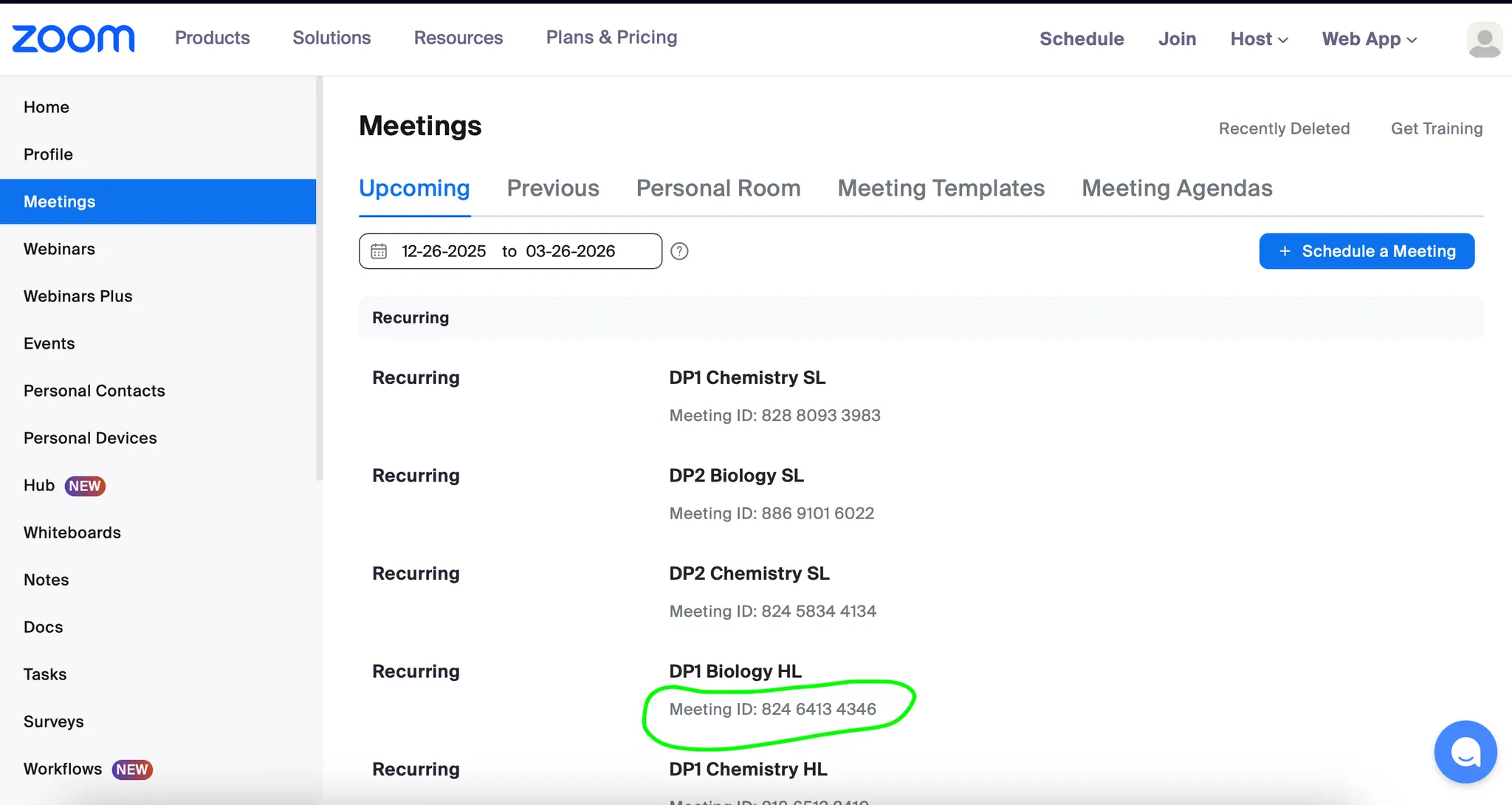

Identical Names
Zoom meeting and g classroom names are identical. Of course, this means that on the g classroom list, only one unique name exists for all g classrooms by ensuring old ones are archived (unless we prioritise the latest ones?
Realistically, identical names method or any other one that requires minimal work is preferred.